Remove a Sharepoint Site from File Explorer
For this example, we will delete the “University of Wisconsin-Documents” library from our File explorer.

The File Explorer is found by clicking the  icon near the lower left-hand corner of the screen.
Let's Get Started
1. In the lower Right-hand corner of the screen, click the  icon.
icon.
2. At the bottom of the "OneDrive" sync window, click More.

3. Select, Settings from the menu.
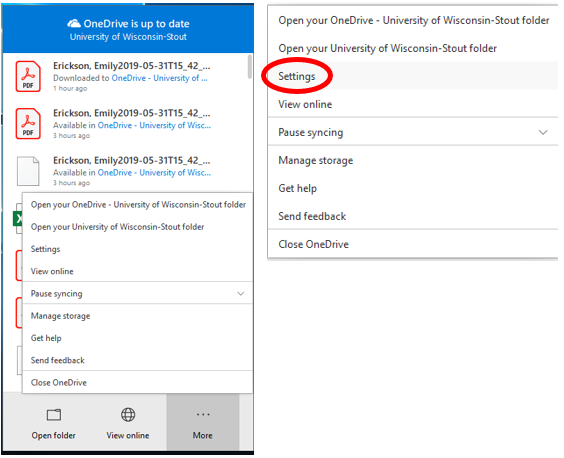
4. The Microsoft OneDrive settings window will appear. Select the Account tab.
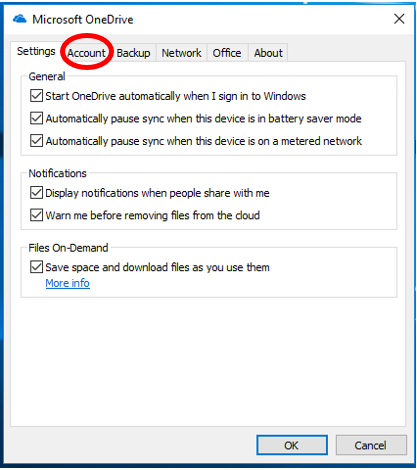
5. On the Account tab, locate the synced library you wish to remove, and click the Stop sync for that library. Reminder: we are removing the "University of Wisconsin-Documents" folder.
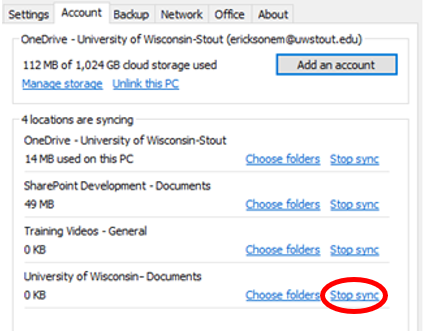
6. Confirm that you want to stop syncing that library.
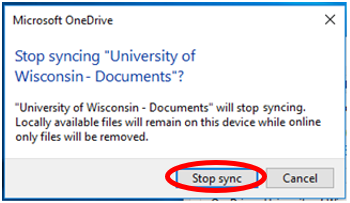
7. You will no longer see the library under the synced locations list on the account tab.
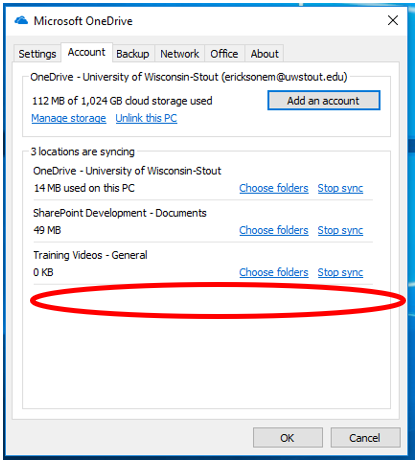
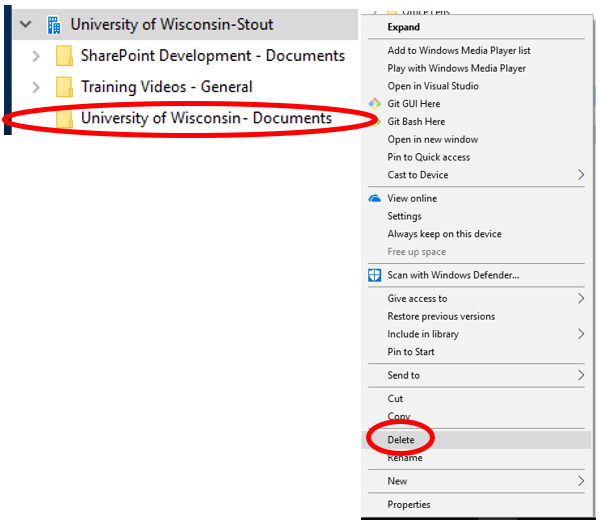
8. You WILL still see this in the file explorer window. To remove it from the file explorer, RIGHT-click on the folder to be removed.
9. Select Delete from the drop down menu.
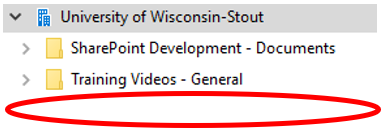
10. Now your library is removed from the file explorer window.
Related Articles
Onedrive Sync Setup
To help you onboard into Vault, we'll walk through the entire Onedrive file system and syncing those items to your file explorer. Once you've been granted access to all the necessary folders, we can start this process. If you have yet to be given ...Password Protect a Word Document
1. First, open the Office document you would like to protect. Click the File menu, select the Info tab, and then select the Protect Document button. Click Encrypt with Password. 2. Enter your password then click OK. 3. Enter the password again to ...How to Make a Shared OneNote Page
1. When you make a new page in onenote go to "file" in the top left corner 2. Click on "share" 3. From here you can either pick which people you want to add (by typing in their email) and make sure to change that you want the to edit in the right ...How to set certain applications to default on windows
Press the windows key on your keyboard Type in "Default apps" and a result under the same name should appear, press enter You'll be taken to a screen that looks just like this From here, scroll to search, or type in the application you want to set as ...Compilation of efficiency tips/tools
As we get closer to 4th quarter, I figured it might be helpful to give you all some tips/tricks/tools on how to make your work life a bit easier. Some of these might take some more trial and error and learning than others, but they can help ...