How to adjust your multi-monitor setup inside Windows
- Navigate to your desktop
- Right click and on the drop down select "Display Settings"
- From here it will pull up a page showing the monitors and settings for them
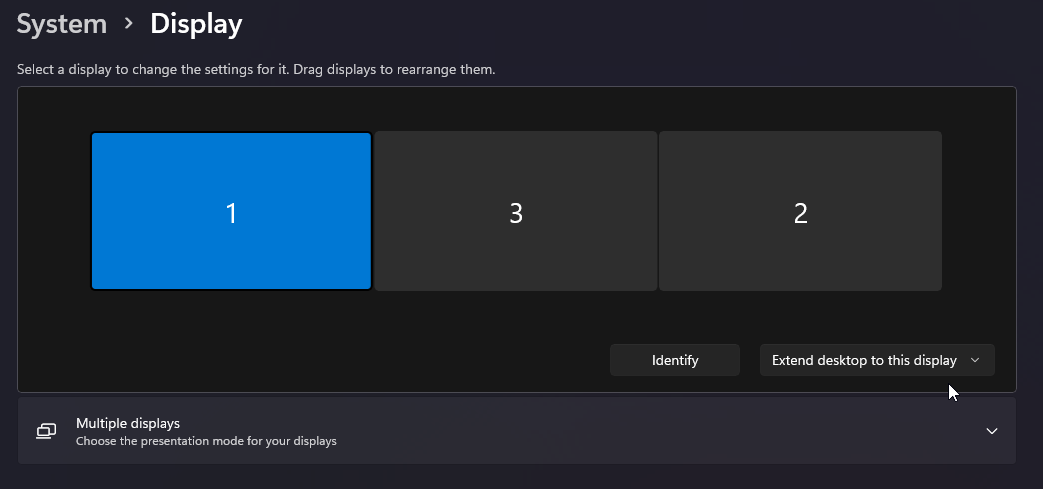
- The box showing 1, would be your laptop or desktop screen. Any others will be your additional monitors and can be clicked and dragged to where they are according to your physical setup
- If you want to extend your display instead of duplicating it, you can click this box in the bottom right
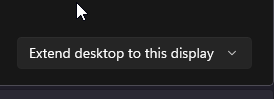
- Clicking on this box will give you a couple options, duplicate each display, extend, or disconnect them
- Duplicate will do just that, it will duplicate the selected displays to each monitor
- Extending them will give each monitor its own windows
- Disconnect will disconnect the selected display
- Moving down the page you'll see more options:
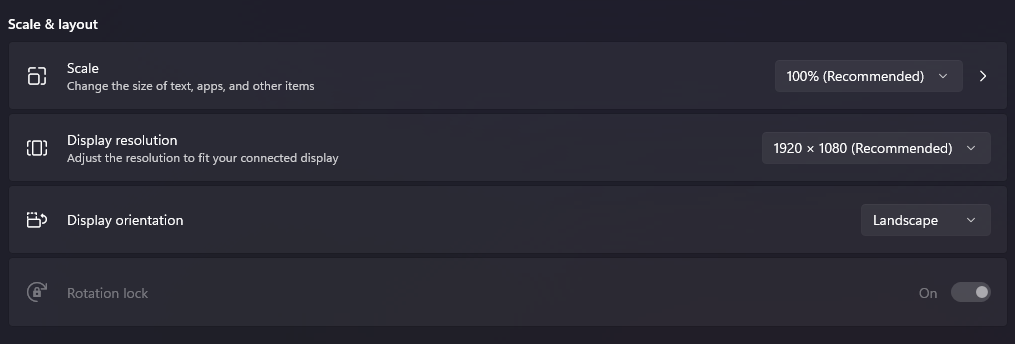
- The most important setting you'll see here is scale and orientation
- Scale is the size of text and apps on your screen
- Orientation is the direction of your monitors.
- Make sure to first click on the monitor you want to make these changes to on the section that shows all of your displays
- After this you should be set! If you have more issues feel free to contact us at helpdesk@allthingsvault.com
Related Articles
Onedrive Sync Setup
To help you onboard into Vault, we'll walk through the entire Onedrive file system and syncing those items to your file explorer. Once you've been granted access to all the necessary folders, we can start this process. If you have yet to be given ...
How to set certain applications to default on windows
Press the windows key on your keyboard Type in "Default apps" and a result under the same name should appear, press enter You'll be taken to a screen that looks just like this From here, scroll to search, or type in the application you want to set as ...
How to restart your computer
This is a great and easy fix but, please keep in mind if you have ongoing files or projects that you are not 1000% sure are saved, make sure one last time before restarting. Click on the windows symbol, it should look something like this: You'll be ...
Compilation of efficiency tips/tools
As we get closer to 4th quarter, I figured it might be helpful to give you all some tips/tricks/tools on how to make your work life a bit easier. Some of these might take some more trial and error and learning than others, but they can help ...
Onedrive Sync Issues
Click on the blue Onedrive icon on your taskbar. In the prompt that opens, click on the cog wheel in the top right corner. Then click on "Quit Onedrive". Wait about 10 or so seconds for Onedrive to fully close. At this point it will no longer appear ...